|

KipAssist is an AI agent developed by Kentech Inc. to assist and speed up data entry and cycletime calculations. KipAssist is 100% self-contained within KipwareCYC® requiring no internet access or connections ... and therefore has no impact on the data center controversy.
You can also access KipAssist presentation and training videos through the link below :
https://www.kentechinc.com/Kipware_Video_Training_Catalog/index.htm
Material Database Notes :
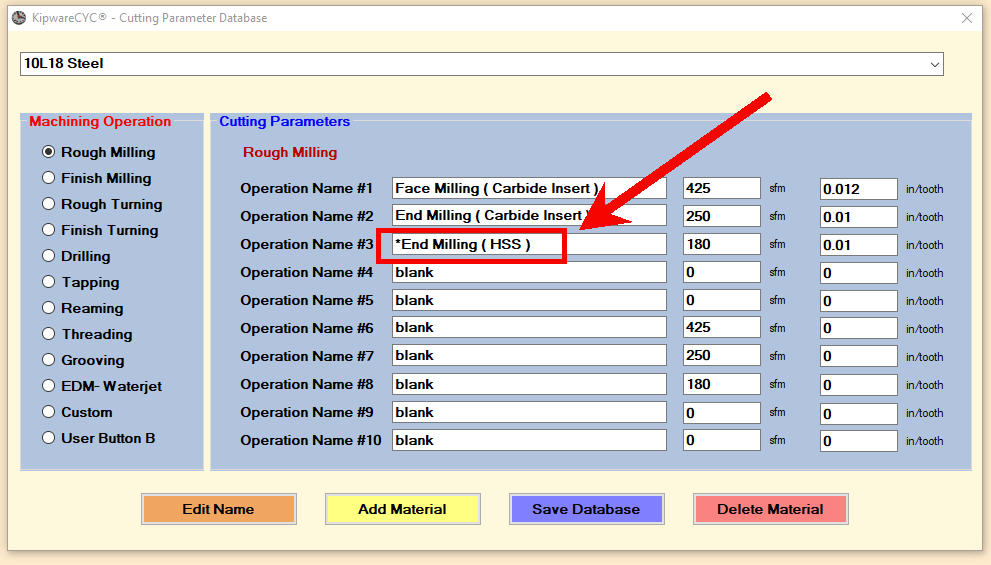
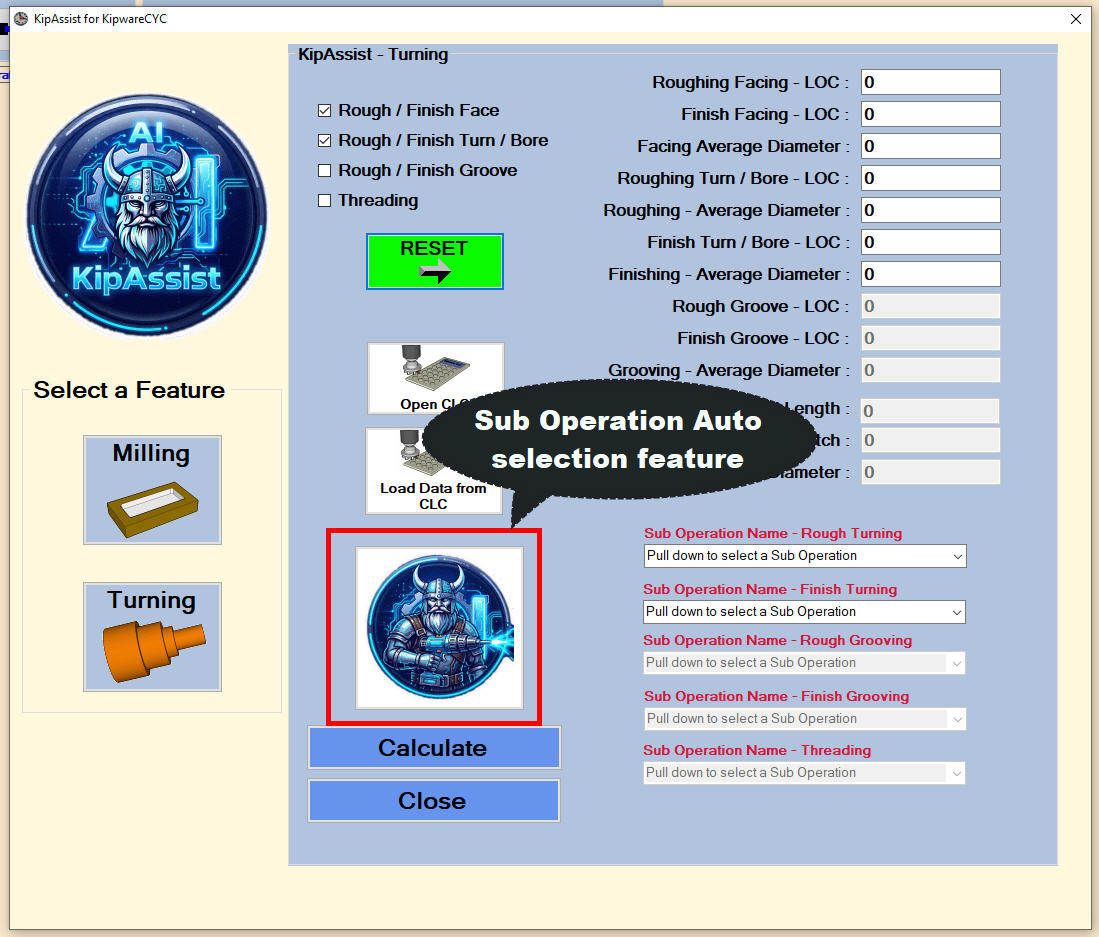
❖When entering CUTTING PARAMETERS under a material name into the database ... precede the sub operation name with the * symbol if you would like that parameter to be auto-selected when using the KipAssist Sub Operation auto selection feature in KipAssist.
❖For Example : Under MATERIAL 10L18 Steel ... under the ROUGH MILLING operation ... entering the Sub Operation Name *End Mill (HSS) ... will result in this sub operation being designated as the favorite sub operation and will be auto selected in KipAssist when the Sub Operation auto selection feature is employed.
KipAssist Preliminary Notes :
❖DESIGN Notes :
❖The design of KipAssist is to allow user to create cycletimes for multiple operations with less data entry. For example ... having a workpiece that requires face milling, pocketing, spot drilling, drilling and tapping. KipwareCYC allows users to create cycltimes for these operations individually ... or now, with KipAssist, to bundle all these operations into a single screen.
❖User can select which machining operations to bundle ... input or use CLC to calculate and input the desired length of cut and input cutter / work diameter ... and KipAssist will auto calculate all rapid times, tool change times and cutting times ... and create KipwareCYC operations for each machining operation ... and auto add all data to the estimate.
❖When to Employ KipAssist :
❖When multiple operations are required for a workpiece ... for example ... rough turn, finish turn, groove and thread for a turning workpiece ... or face milling, pocketing, spot drilling, drilling and tapping for a milling workpiece ... KipAssist can greatly reduce data entry and automate the inclusion of all operations into the estimate.
❖KipAssist can be employed for even single operations ... but multiple operation estimating is it's primary design.
❖Any combination of operations can be bundles in KipAssist ... for example ... rough / finish turn and groove ... or rough / finish mill and drill ... or spot, drill and tap ... etc. etc.
❖Single Operations can still be performed individually using the standard KipwareCYC procedures instead of KipAssist.
❖Any operations auto calculated through KipAssist can be manually edited in the Cycletime Operation Data screen for the desired operation. For example ... handling time is not auto-calculated through KipAssist but can be manually added through the Cycletime Operation Data screen.
Steps for Employing KipAssist :
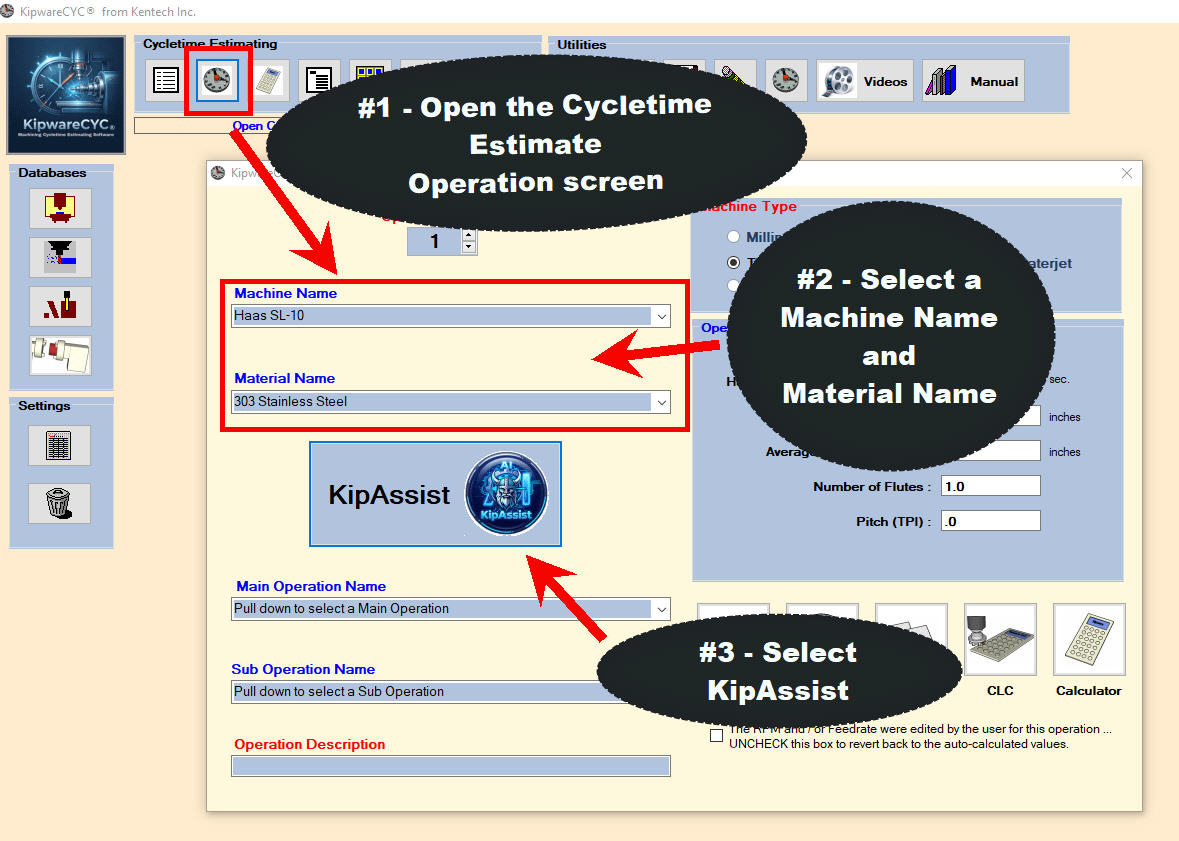
(1) Begin by opening the Cycletime Estimate Operation screen. If this is the first operation the Operation Counter will tick up ... if you are adding operations to existing operations, make certain the Operation Counter is correct.
(2) Select a Machine Name and Material Name from the drop down lists.
(3) select KipAssist to open the AI agent input screen.
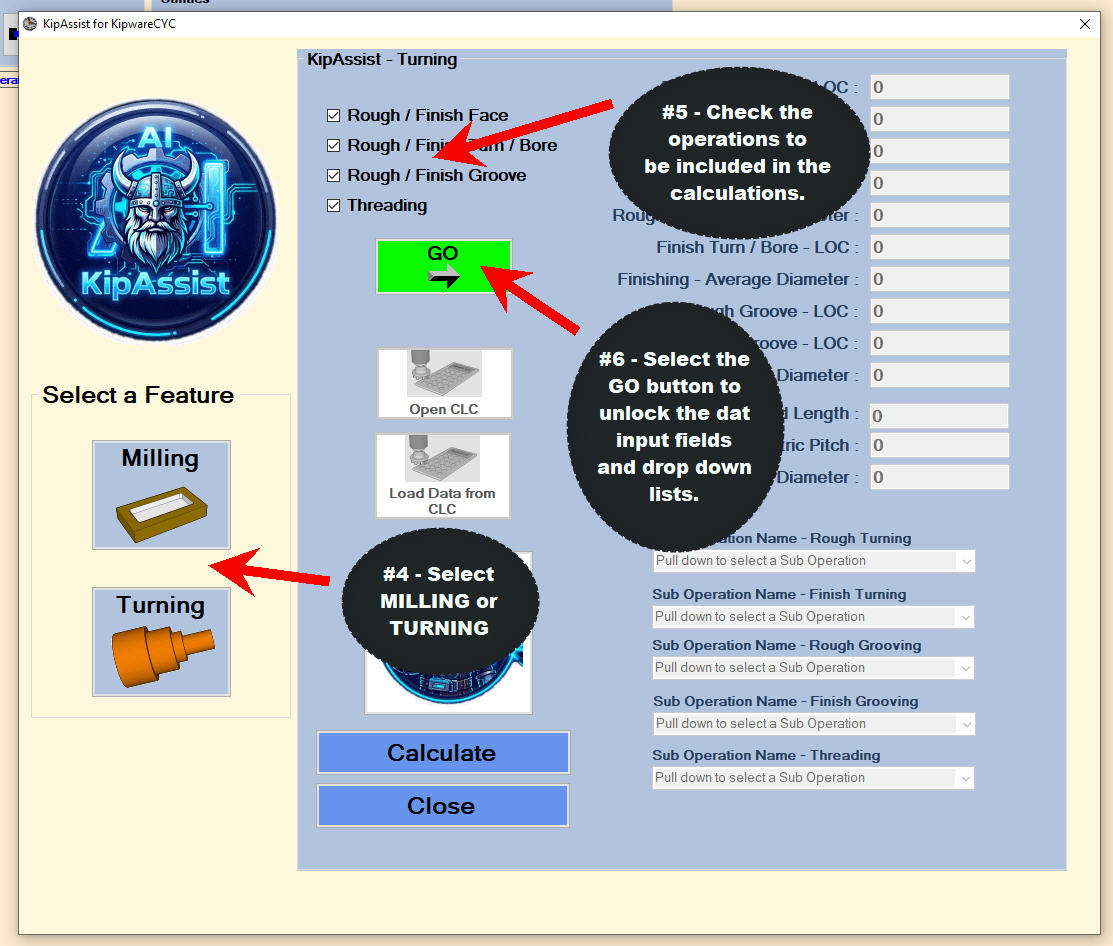
(4) Select the type of calculations / operations to perform ... MILLING or TURNING.
(5) Check the boxes for the desired operations to be calculated.
(6) Press the GO button and the appropriate data input fields and dropdown menus will become accessible. Once selected ... the button will revert to RESET ... press it again to re-select other / new checkboxes and unlock there fields and dropdowns.
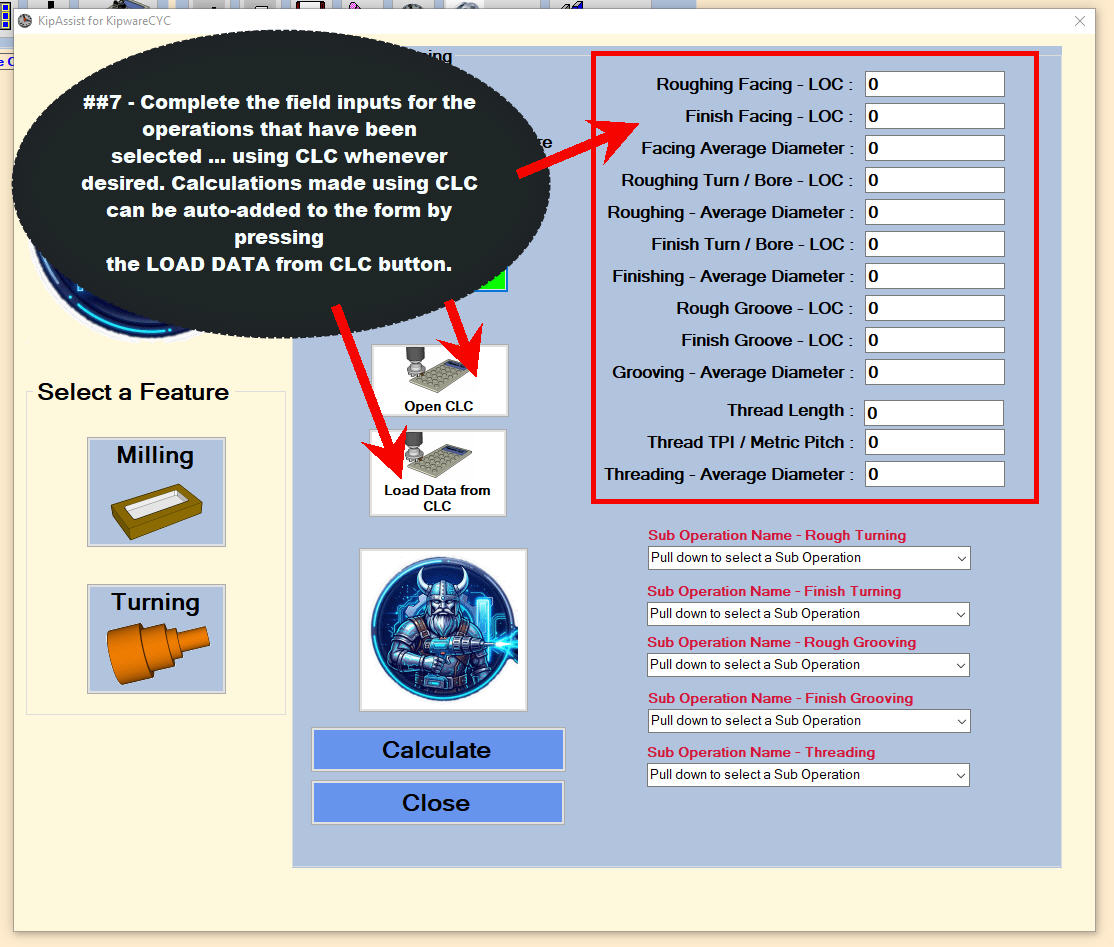
(7) Complete the input fields for the operations that were previously selected. CLC (Cut Length Calculator) can be employed by selecting the OPEN CLC button. Use the appropriate menu in CLC to calculate the length of cut ... return to this screen and select the LOAD DATA from CLC button to have the appropriate data auto-added to the appropriate fields. repeat for each operations as required. data can also be entered manually into the appropriate fields as desired.
(8)
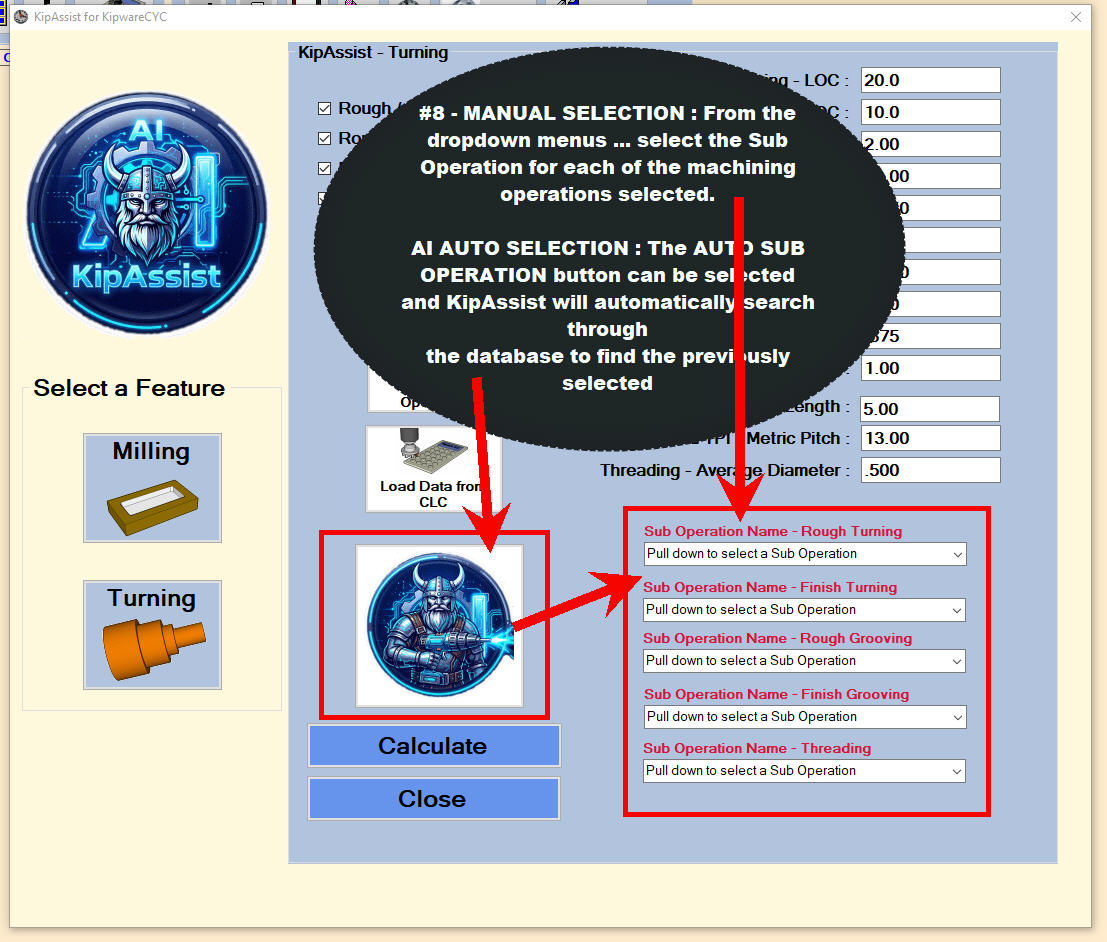
MANUAL SELECTION : select the appropriate dropdown SUB OPERATION name from the list for each of the operations previously selected.
AI AUTO SELECTION : select the appropriate AUTO SUB OPERATION button and KipAssist AI will search the cutting parameter database to find the pre-selected preferred sub operation for each operation ... will add them to the appropriate dropdown list ... and utilize those parameters in the subsequent calculations.
Manual intervention or editing can be done at any stage prior to selecting the CALCULATE button ... after that edits can be made for any operation in the KipwareCYC Cycletime Estimate Operations screens.
NOTE : For a sub operation to be auto selected by the AI agent ... the cutting parameter name for the material selected must have a * symbol at the beginning of it's name to be designated as a preferred sub operation in the material Cutting Parameter Database. Refer to the DATABASE section of this manual for more.
(9) Once all fields and dropdowns have been completed ... press the CALCULATE button. All calculations for all operations will be executed and all operations will be added to the estimate. As mentioned, any edits can be made directly to any operation using the KipwareCYC Cycletime Estimate Operations screens.
|